
Open your invitation
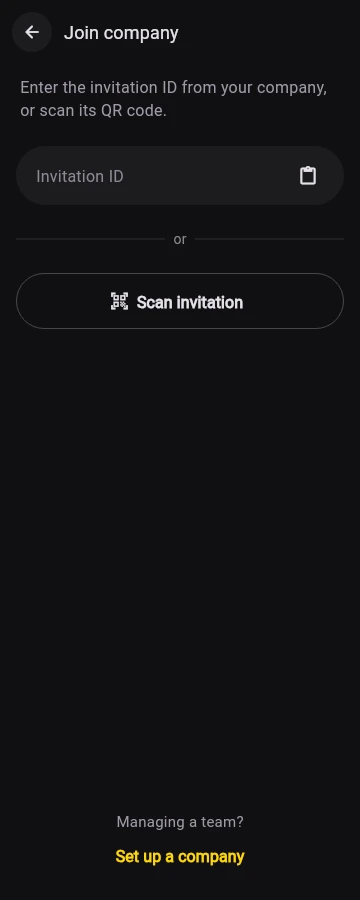
- Tap the invitation link your company sent you. If Android offers a choice, open it in Marka.
- Alternatively, open Library → Settings. In Identity, choose Join company and enter or paste the invitation ID.
- To scan instead, choose Scan invitation. Point the camera at the QR code, or use the gallery button to choose a QR image.
Check the company and your name
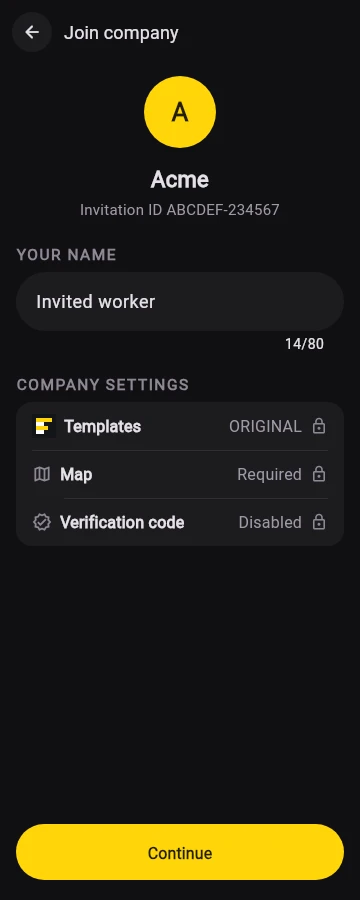
Check the company name, logo and invitation ID before continuing. The screen also shows any company stamp rules.
Your invited worker name is filled in for you. Change it if needed, then tap Continue. The company name and company logo come from the company.
Choose what to include
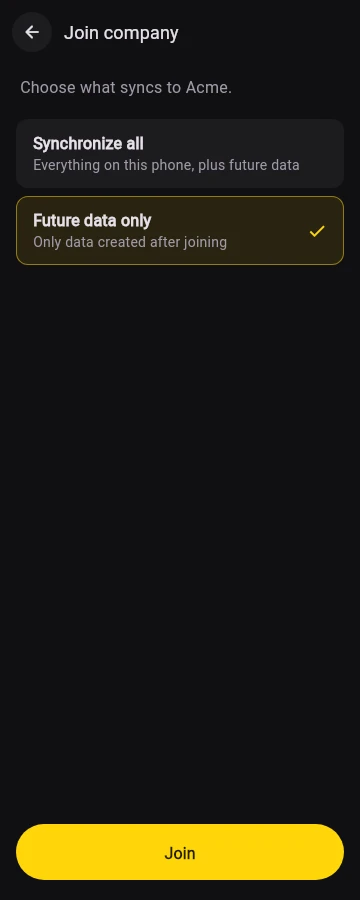
Choose carefully, then tap Join. This choice is about existing data; it does not turn off collection of future records.
- Synchronize all: include eligible records already on this phone, plus future records. This can include personal photos/videos and project labels already in Marka.
- Future data only: leave pre-join records out of this connection. New eligible photos, videos, projects and timesheets will still be collected automatically.
After you join
Company details shows synchronization settings and upload status. You can still edit your own name; company branding and any enforced stamp settings are controlled by the company.
If the invitation is unavailable, check the code and your connection, then ask your company for the current invitation. A reset invitation replaces its previous code.