
Check upload progress
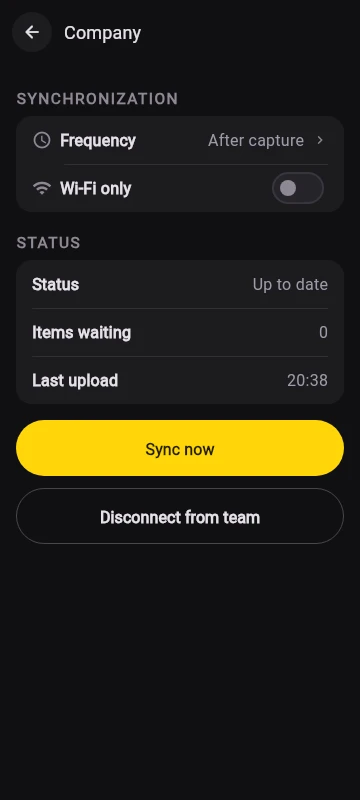
- Open Library → Settings, then Company details under your company identity.
- Check the status, items waiting and last upload.
- Choose Sync now to request an upload. Keep an internet connection available until the pending items finish.
Choose when to upload
Company details includes Frequency and Wi-Fi only. Choose the available frequency that suits your work and whether uploads should wait for Wi-Fi.
Automatic work depends on Android’s background restrictions and connectivity. If uploads have not started, open Marka and check Company details. A queued item is not yet a confirmed company copy.
Photos and videos are collected upload-only. Timesheet events and company corrections have their own synchronization so the worker and company can see updated attendance records.
Understand a warning
- Interrupted: check connectivity. Sync retries when a connection is available.
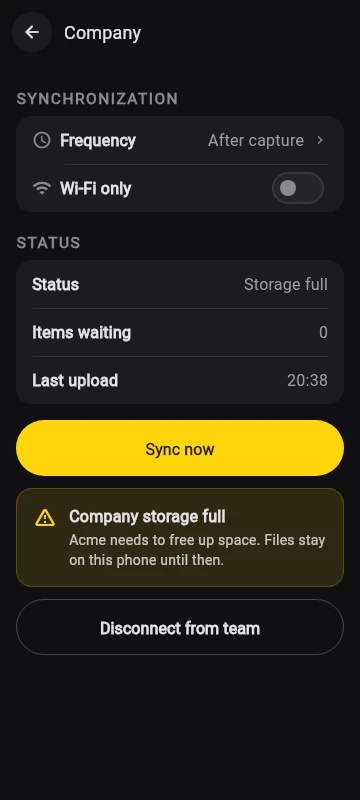
- Storage full: ask the company to free storage or increase its plan. Pending files stay on this phone.
- Paused: the company needs to resolve its plan or access issue.
- Access revoked: this device no longer has company access. Contact the company.
Disconnect from the company
In Company details, choose Disconnect from team and confirm. Future uploads from this connection stop. Files and timesheets already on your phone stay there.
Disconnecting, uninstalling Marka or deleting a local photo does not delete company copies already uploaded. Ask the company to remove its collected records when appropriate. Drive backup is separate from company collection.