
Create a company project
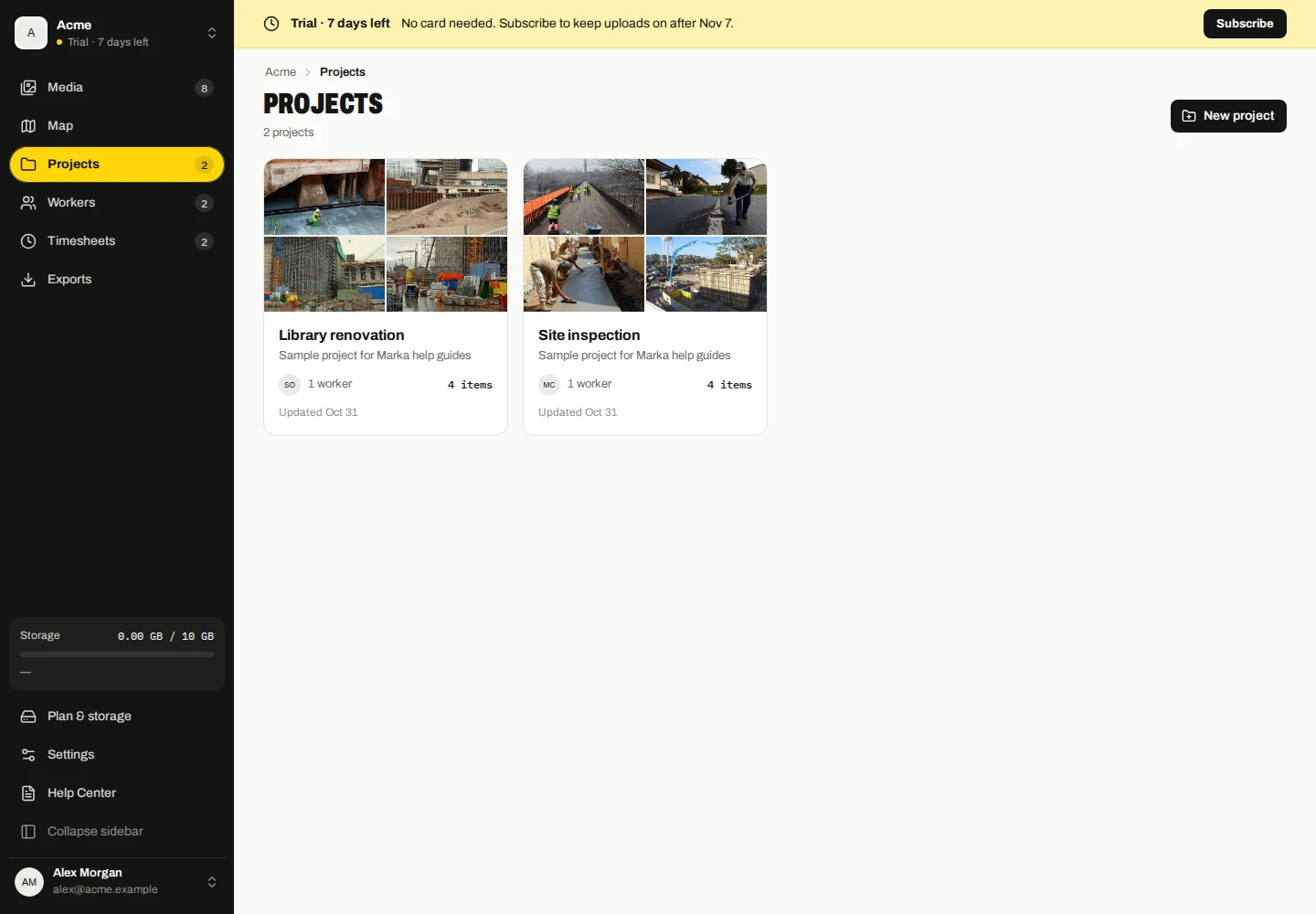
- Open Projects in the dashboard and choose New project.
- Enter a name and optional description, then select the workers assigned to the project.
- Save. Assigned company projects become available to connected worker devices when they synchronize.
Company projects and personal labels
A project organizes records; a photo or video belongs to at most one project, and it can have no project. Workers can also have personal project labels on their phones.
Company projects are marked as company-owned in the app. Collected personal labels are not the same as assigned company projects. If the company disables project creation, workers cannot create new company projects through that connection.
The join screen’s existing-data choice controls whether eligible older project records are included. Future-only collection does not automatically collect your older files just because they have a project label.
Move collected files
- In Media, select the files to organize.
- Choose Move and pick the destination project, or No project to remove the current association.
- Confirm and check the destination project or media filter.
Moving a file changes its company organization. It does not rewrite its original capture project or signed capture facts. Company project assignment does not download colleagues’ media to a worker’s phone.
Delete a project carefully
Open the project’s delete action and read the confirmation. Check whether you are also choosing to delete its media; deleting a project and deleting its files are different choices.
Company changes do not erase personal originals on worker phones. Export files first if you need an external copy.
Edit project details and assignments
- Open Projects and select the project.
- Use Edit to change its name or description and select its assigned workers.
- Save changes and allow connected devices to synchronize the updated assignment.
For local project labels, use the separate mobile library guide.