
Invite a worker
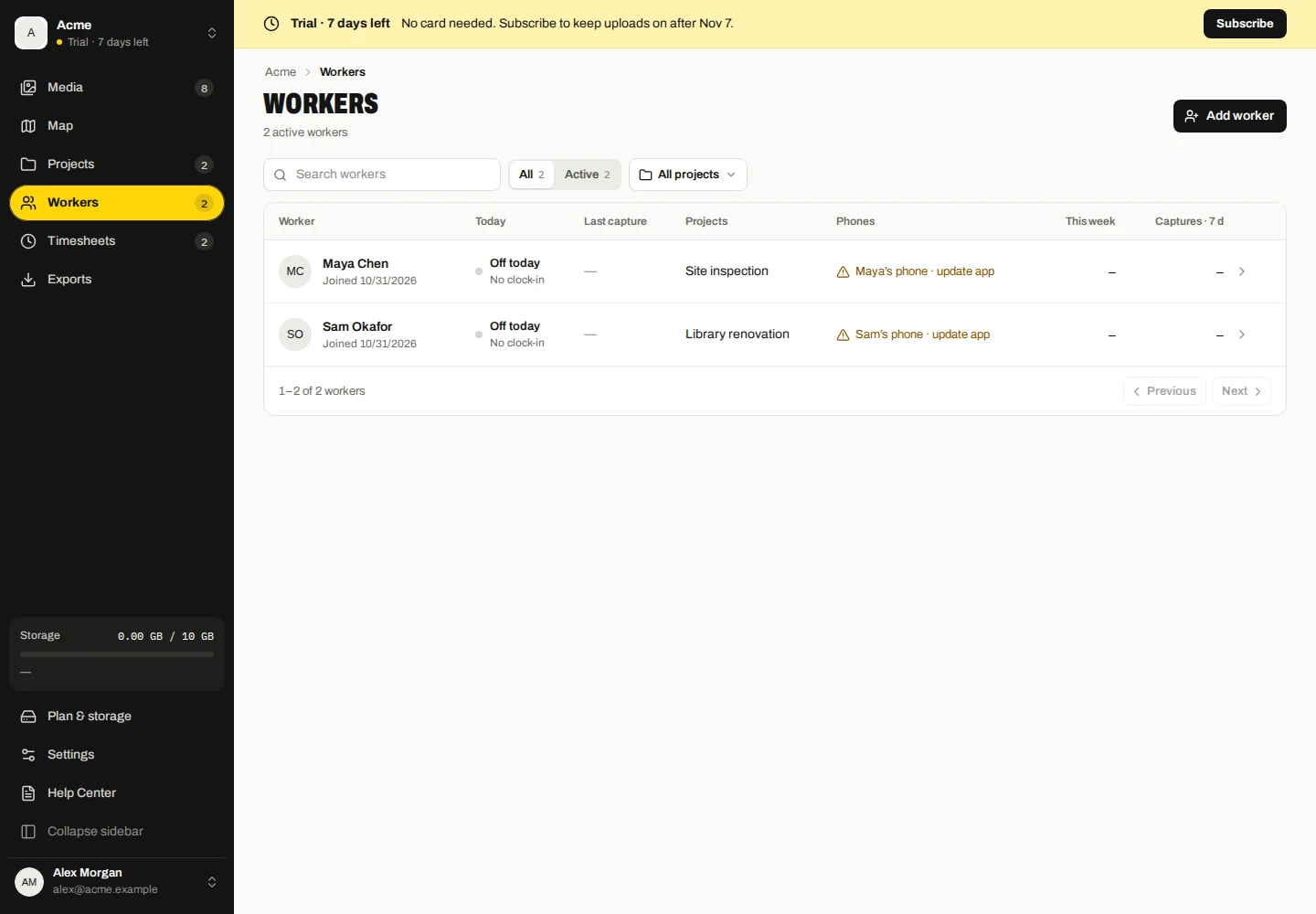
- Open Workers and choose Add worker.
- Enter the worker’s name and create the invitation.
- Copy the link or code, or share its QR code privately with that worker.
- Ask them to open the link or enter/scan the invitation in Marka, confirm their name and choose their existing-data option.
A worker does not need an account or a password. The invitation identifies the worker and can connect more than one of that worker’s devices. Do not post a working invitation publicly.
Assign company projects
Edit the worker’s project assignments, or select workers while editing a project. Devices receive assigned company projects when they synchronize.
Inviting a worker does not give them web dashboard access or access to another worker’s collected photos.
Review and revoke a device
- Open the worker’s details and review their devices.
- Check the device name, connection status and activity information to identify the installation.
- Choose Revoke device for the device that should stop uploading and confirm.
Revocation applies to that installation. Existing company copies remain available. Other authorized devices can keep uploading. A reinstall can have a new installation identity, so revocation is not a permanent hardware ban.
Reset an invitation or remove a worker
If an invitation was exposed, use Reset invite link and share the new invitation privately. The old code is replaced. To stop a connected device, also use its revocation action rather than relying on the invitation reset.
Remove worker ends the worker’s company access; it does not erase records already collected. Use the appropriate media or company deletion controls for removal of stored data.
Edit a worker and retrieve their invitation
- Open Workers and choose the worker.
- Use the edit controls to update the worker’s name or project assignments and save.
- Open their invitation to copy the current link/code or share its QR code again. Create a new code only when you intend to reset the old invitation.
A single worker can have multiple devices. Inspect the individual device before revoking access.