
Find a file in Media
- Open Media in the company dashboard.
- Choose the worker, project, file type or verification filters you need.
- Choose a date range. Check whether the date filter uses Captured or Uploaded.
- Switch between grid and table, then open a file to inspect its details or download the original.
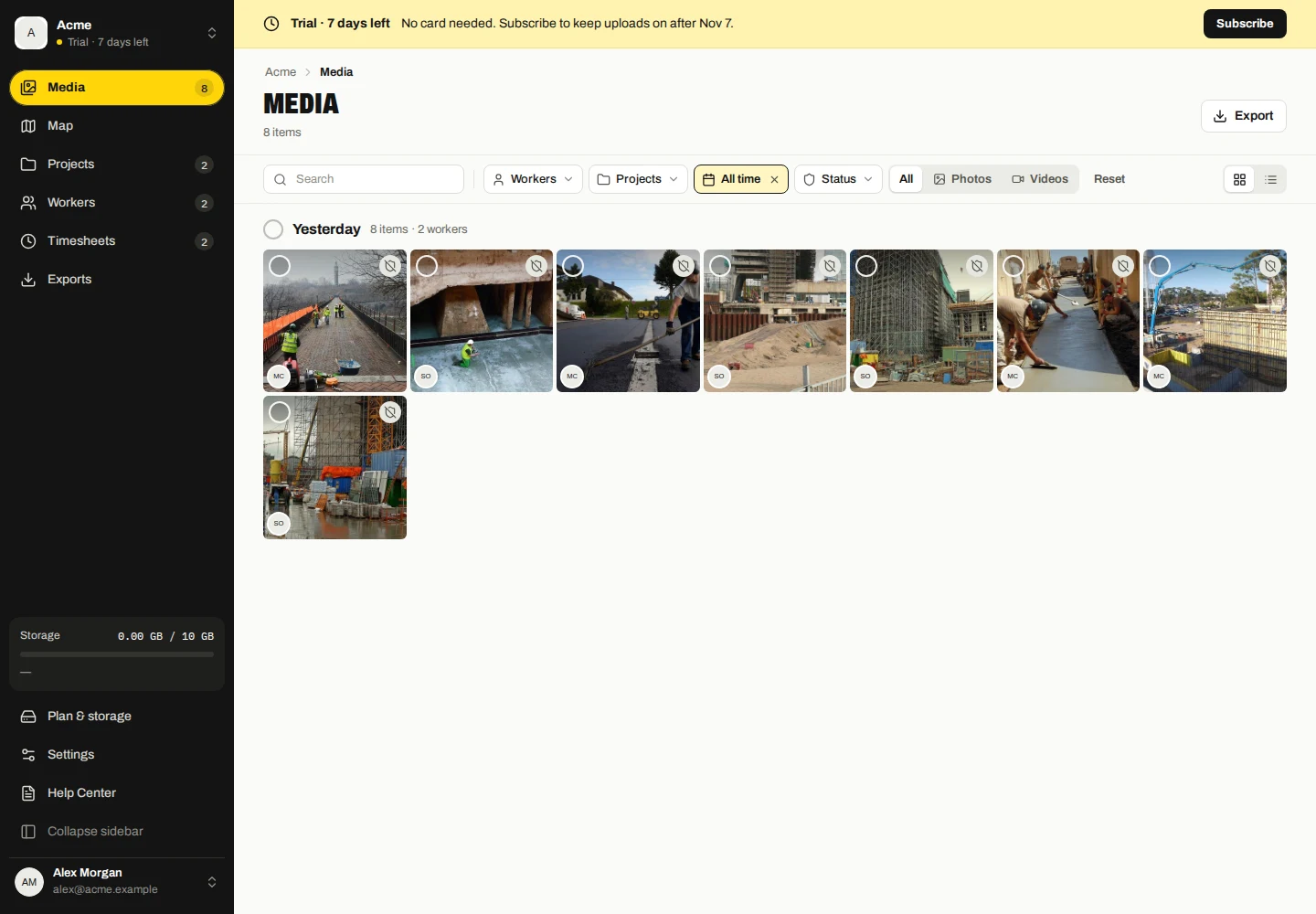
Captured and uploaded are different dates
Captured refers to the capture record. Uploaded refers to when the company received the file. Offline captures can be uploaded later, so these dates may differ.
Files without a current project can be found using No project. The original capture project can remain visible in capture details even after you move a file to another project.
Explore capture locations
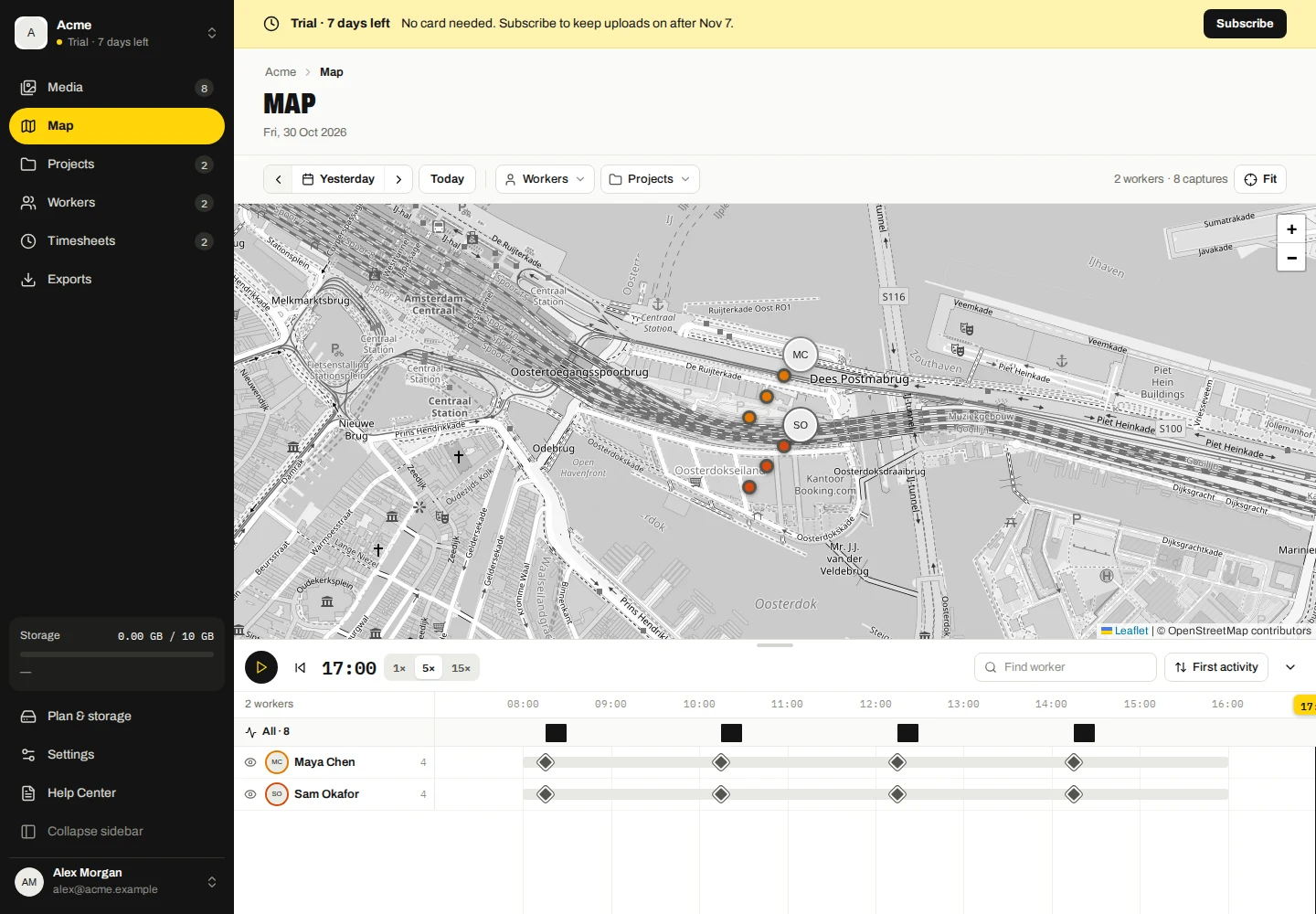
- Open Map and select a worker and date.
- Select a point or capture in the timeline to inspect that record.
- Use the map controls to zoom and move around the capture area.
A trace connects locations recorded with captures. It does not represent continuous GPS tracking or prove the route taken between points. Files with no usable coordinates cannot supply a capture point.
If the map is blank
Check the selected worker/date and whether those records contain coordinates. Then check your internet connection; the map background comes from an external tile provider.
A blocked map background does not mean the stored photo or its capture proof has been deleted. Try the media details while the map service is unavailable.
Play and inspect a day
- Open Map, choose the date and filter workers or projects.
- Use Play the day or Pause and select 1×, 5× or 15× playback speed.
- Drag the timeline playhead to inspect a time. Use Back to now or Show full day to leave the historical position.
- Use a worker’s focus action to isolate their activity, or their eye control to hide/show that worker on the map.
- Search or sort timeline workers and collapse/expand the timeline when you need more map space.
Playback reconstructs the order of recorded capture points; it does not supply missing positions between captures.
Delete company media
- In Media, select the files you want to remove.
- Choose Delete, read the company-copy warning and confirm.
- For a single file, use its detail-view delete action.
This removes the collected company copy, not the worker’s local original. Export anything you need first.