Choose and edit a stamp
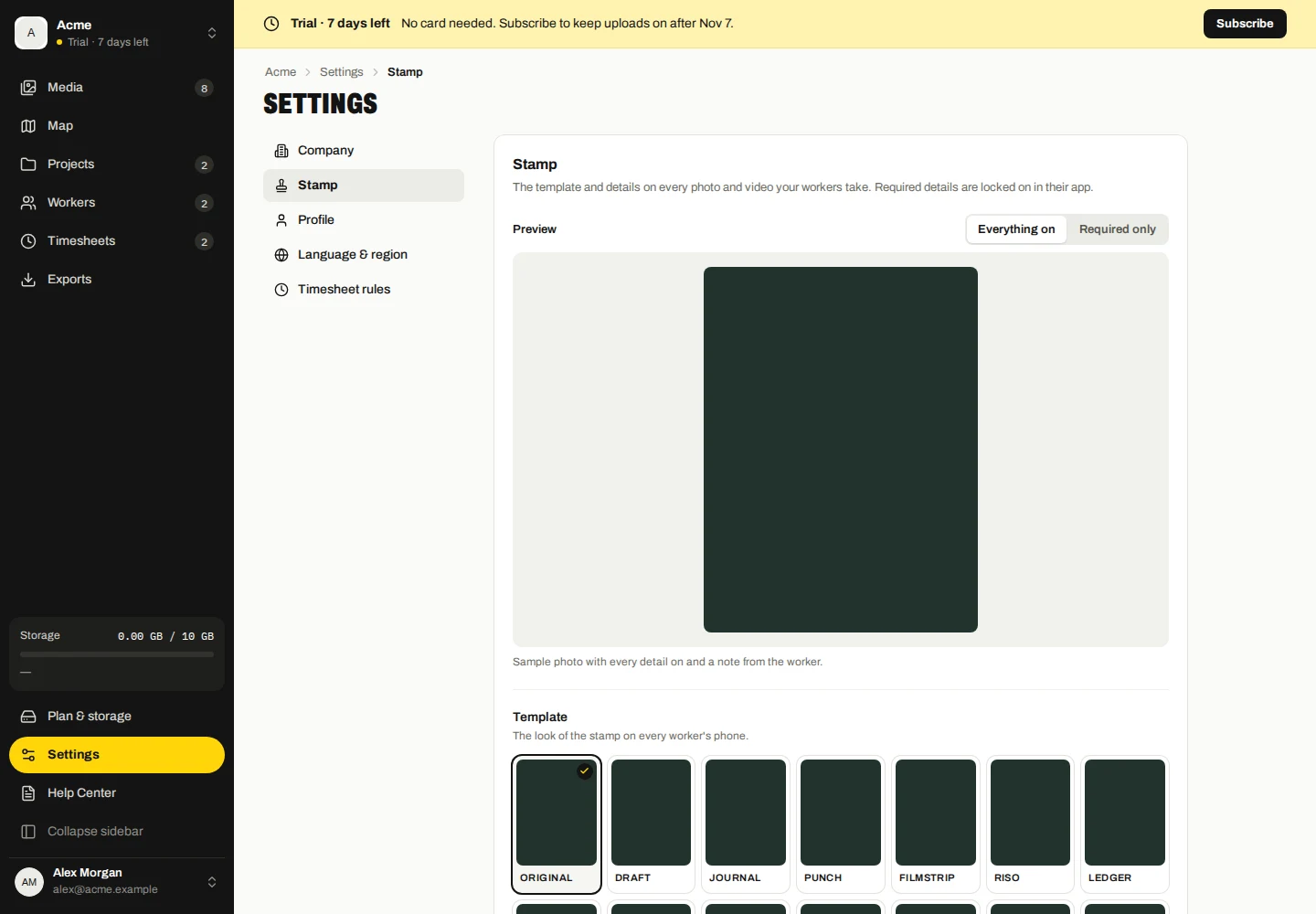
In the camera, use the template selector to choose a stamp. Tap the stamp to change available details such as notes, identity, logo, address display and visibility options.
Capture time and location are recorded capture facts. A typed or saved address is a display label and may differ from the captured coordinates. Check your location before taking an important photo.
When the company sets stamp rules
Company settings may choose your template and require or hide particular stamp items. Locked settings show that the company controls them; you can still change items it leaves optional.
Notes and saved-address text remain editable. Company rules apply to subsequent captures and do not rewrite files you already took. Connected devices refresh rules when they reconnect; offline devices use their last synchronized rules.
Check an original file
- Open Verify files on the Marka website.
- Choose the original photo or video, or drop it into the checker.
- Read the result and its explanation. Supported verification is performed on the selected file in your browser.
Use the original file. Messaging apps and image editors may resize or re-encode files, removing the proof. A screenshot of a stamped image is not the original file.
Understand the result
Verification does not establish that the photographed scene is true, that the phone’s location was genuine, or that every timestamp is exact. An online timestamp establishes that a signed record existed by that time.
- Verified means the supported capture proof checks passed for those file bytes.
- Verified edit identifies a supported edit whose proof preserves the original capture facts.
- No seal means a supported proof was not found. It does not, by itself, mean the scene is false.
- Warning, Changed, Invalid seal, Unknown app, Untrusted or Cannot verify needs the detailed explanation; do not treat these as Verified.