Record time in the app
Use the app’s clock-in, clock-out and break actions to record the work session. Record both the beginning and end of a break.
When connected to a company, eligible attendance records synchronize with that company. The existing-data choice at joining also applies to eligible older timesheet records.
Time is calculated from recorded breaks. Marka does not apply an automatic break deduction or impose an overtime limit in this workflow.
Review the company timesheets
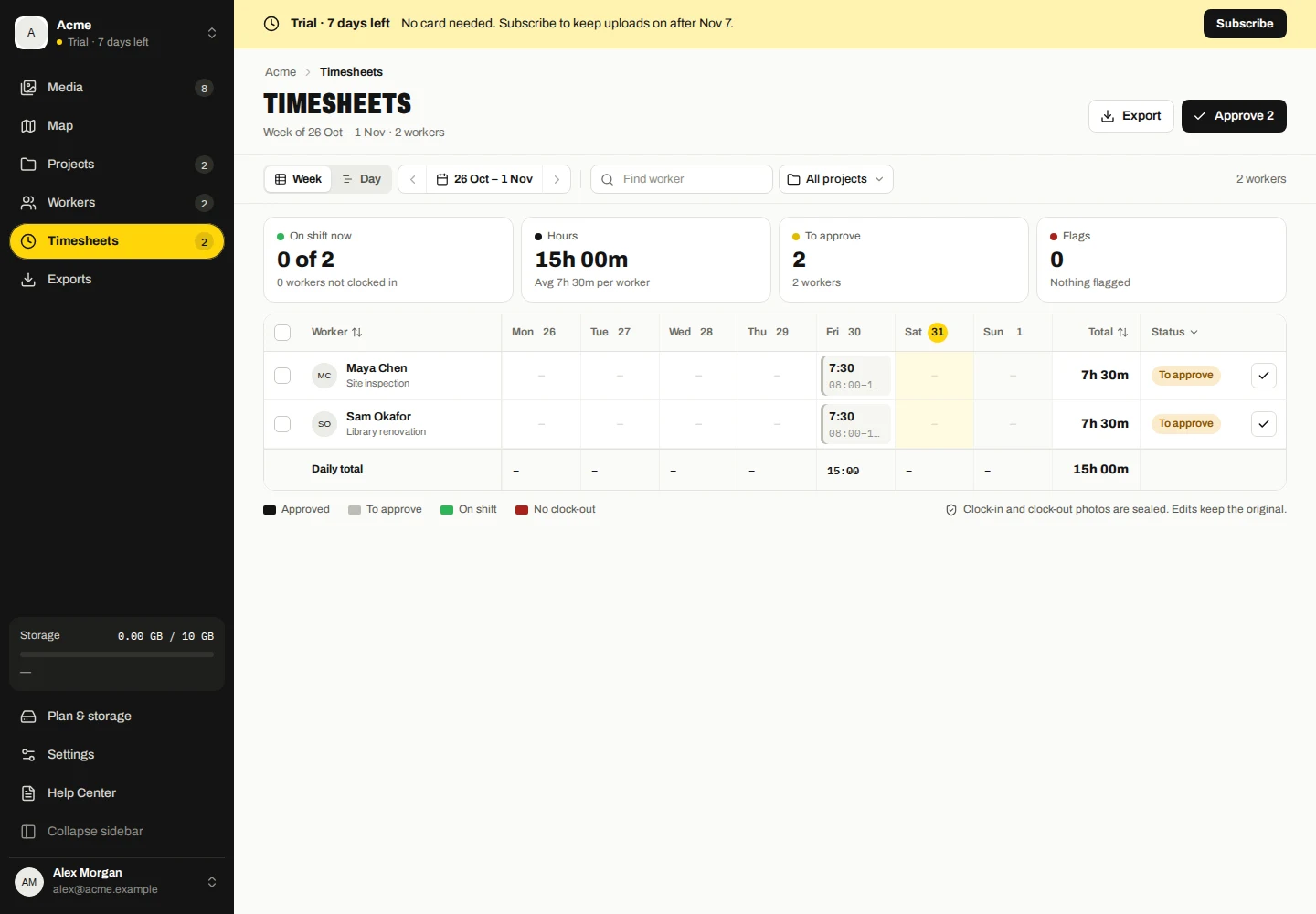
- Open Timesheets in the dashboard and choose the week or date you need.
- Filter by worker and review each shift, its break time and available capture evidence.
- Open a shift with a missing clock-out or overlap flag and check the original events before correcting or approving it.
Records from multiple devices can contribute to one worker’s attendance. Overlaps are flagged for review; they are not silently resolved by deleting source events.
Correct and approve
Open the shift’s edit action, enter the corrected values and save. For a shift spanning midnight, check the clock-out date as well as its time.
Corrections are kept separately from original source events and are audited. Approval is manual. Provide a reason when the approval action requests one.
Changed or newly synchronized attendance can require approval again. Review the updated record before exporting an approved timesheet.
Photos and exports
A shift may have photo evidence, but attendance records can remain even if an attachment has expired or been deleted under media-storage rules. A missing image does not automatically remove the clock record.
Choose Export for the available CSV, Excel or PDF report. Check the date range and approved-only setting before using the report for your own payroll process.
Approve selections or remove approval
- Review the chosen week/day, worker filters and flags first.
- Select the workers or shifts and use Approve for eligible completed shifts. Add a reason if requested.
- To remove approval, open the approved shift and use its unapprove action.
- Recheck approval after correcting times or receiving newly synchronized events.
Open shifts and unresolved overlaps/conflicts need review; a bulk action does not make them valid.