Company name and logo
- Open Settings → Company.
- Edit the company name and save changes.
- Upload a PNG or JPG logo, adjust the square crop and save. Use Replace or Remove to change it later.
Company branding is used in the workspace, invitations and reports. Joined workers use company identity. Copy the workspace ID when support needs it; it is not an invitation code.
Profile and account security
- Open Settings → Profile to update your name and profile picture.
- Save changes; use Replace or Remove for the picture.
- Use Change password and complete the email reset instructions for a password-based login. Use Sign out to end your browser session.
Google sign-in is available separately. Workers use invitation access instead of this account. Deletion has a separate confirmation flow.
Language and region
- Open Settings → Language & region.
- Choose Interface language for the workspace and Report language for generated reports.
- Choose the company time zone, date format, time format and week start, then save.
Report language is separate from interface language. Check the time zone before reviewing attendance or date-filtered company records. User-entered names, notes and addresses are never translated.
Enforce a stamp template and fields
- Open Settings → Stamp.
- Select a template and choose whether workers may change the template.
- Set supported fields to Optional, Required or Hidden and review the preview.
- Set Create company projects according to whether workers may create company-owned projects.
- Save the stamp settings. Phones receive changes on their next successful synchronization.
Required fields cannot be disabled by workers; hidden fields cannot be enabled. Notes and saved address text remain editable. Rules affect new captures and do not rewrite old photos. Offline phones use the last received rules.
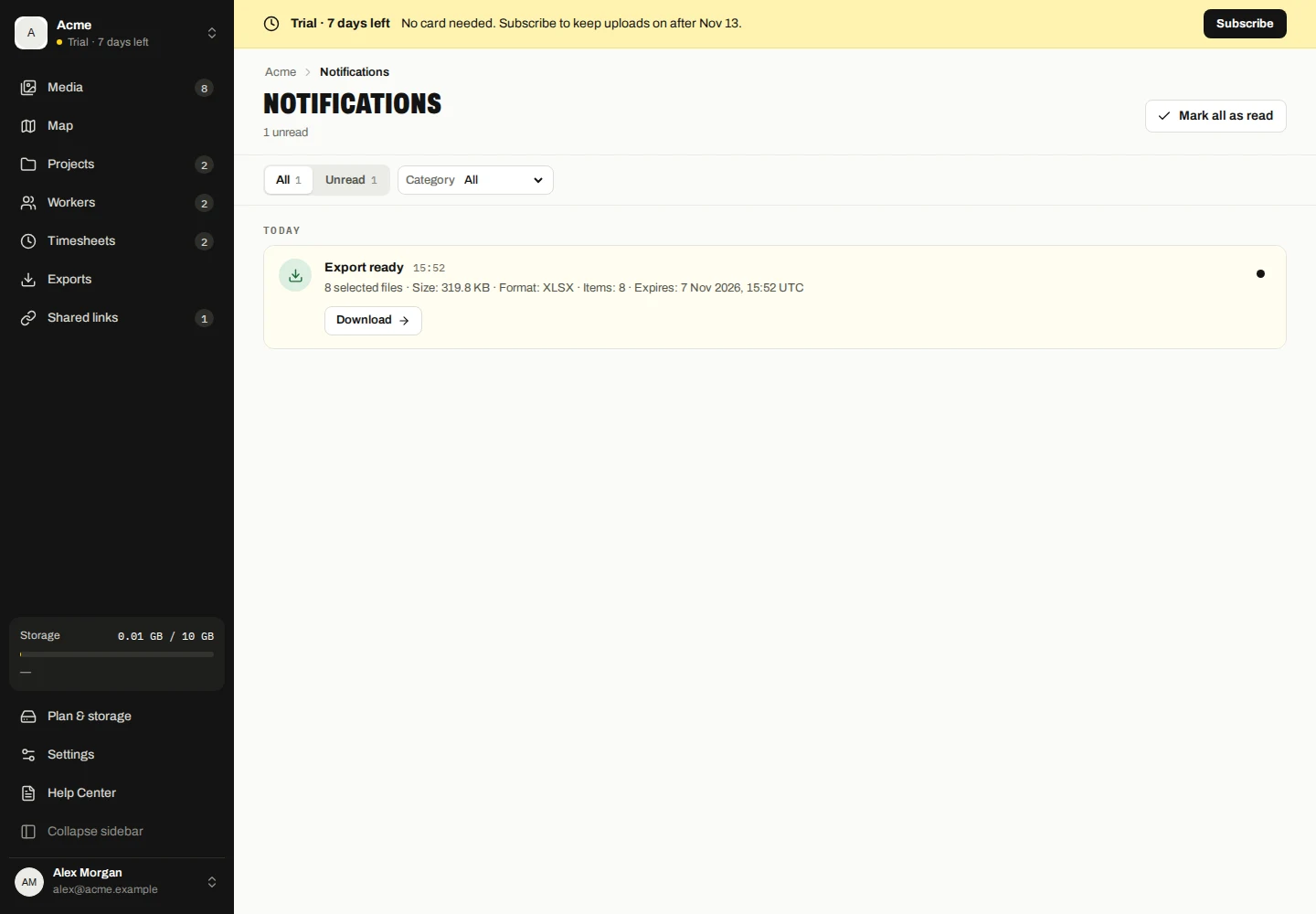
Read notifications
- Open Notifications in the workspace.
- Choose All or Unread and filter by exports, shared links, uploads or storage.
- Open the relevant action to review the export, share, device or storage warning. Use Mark as read when you have reviewed a notification.
Read status helps you track notifications. Marking a notification as read does not cancel an export, revoke a share or resolve a storage warning.
Email preferences
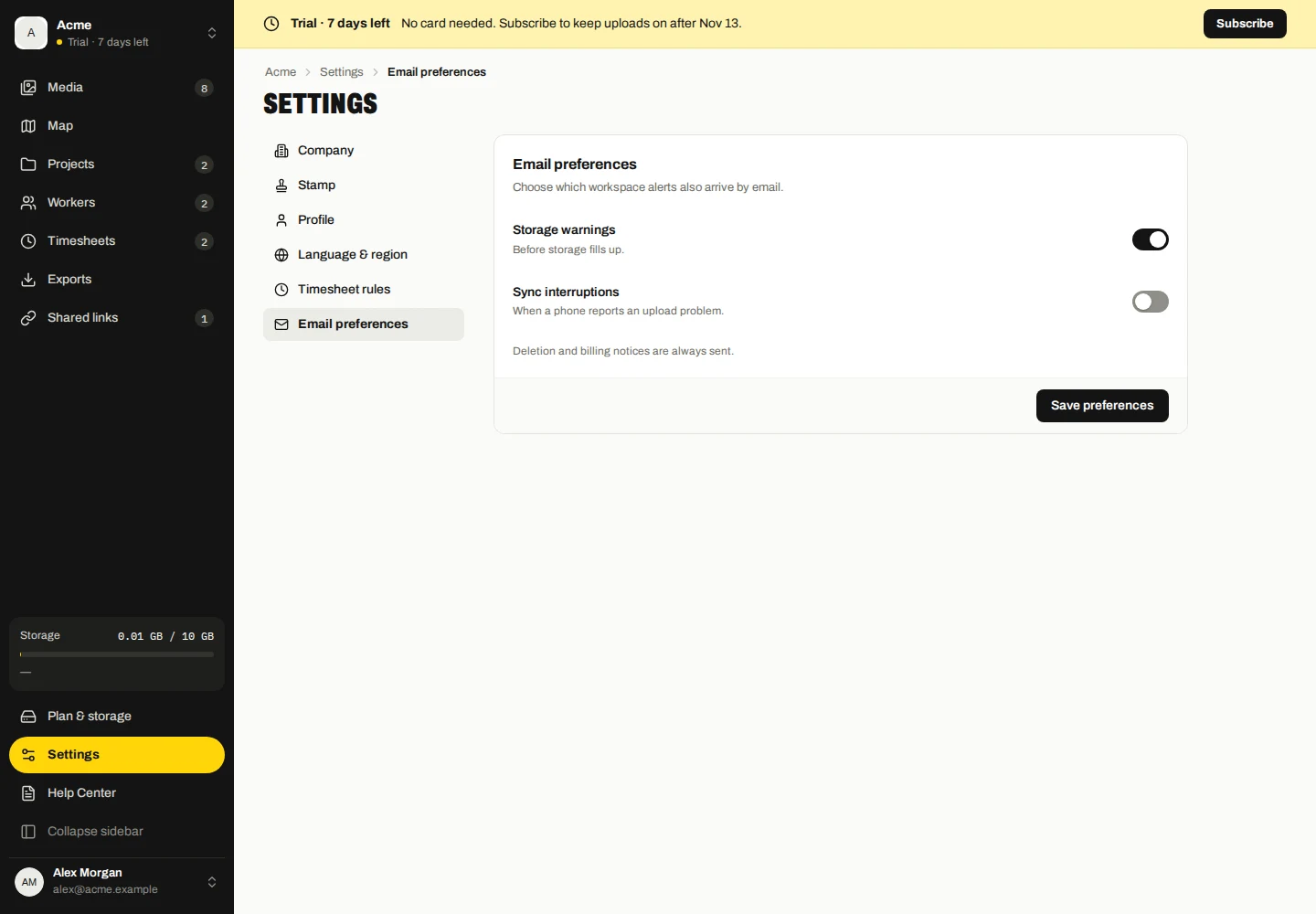
- Open Settings and choose Email preferences.
Choose which workspace alerts also arrive by email.
Deletion and billing notices are always sent.
Review activity history
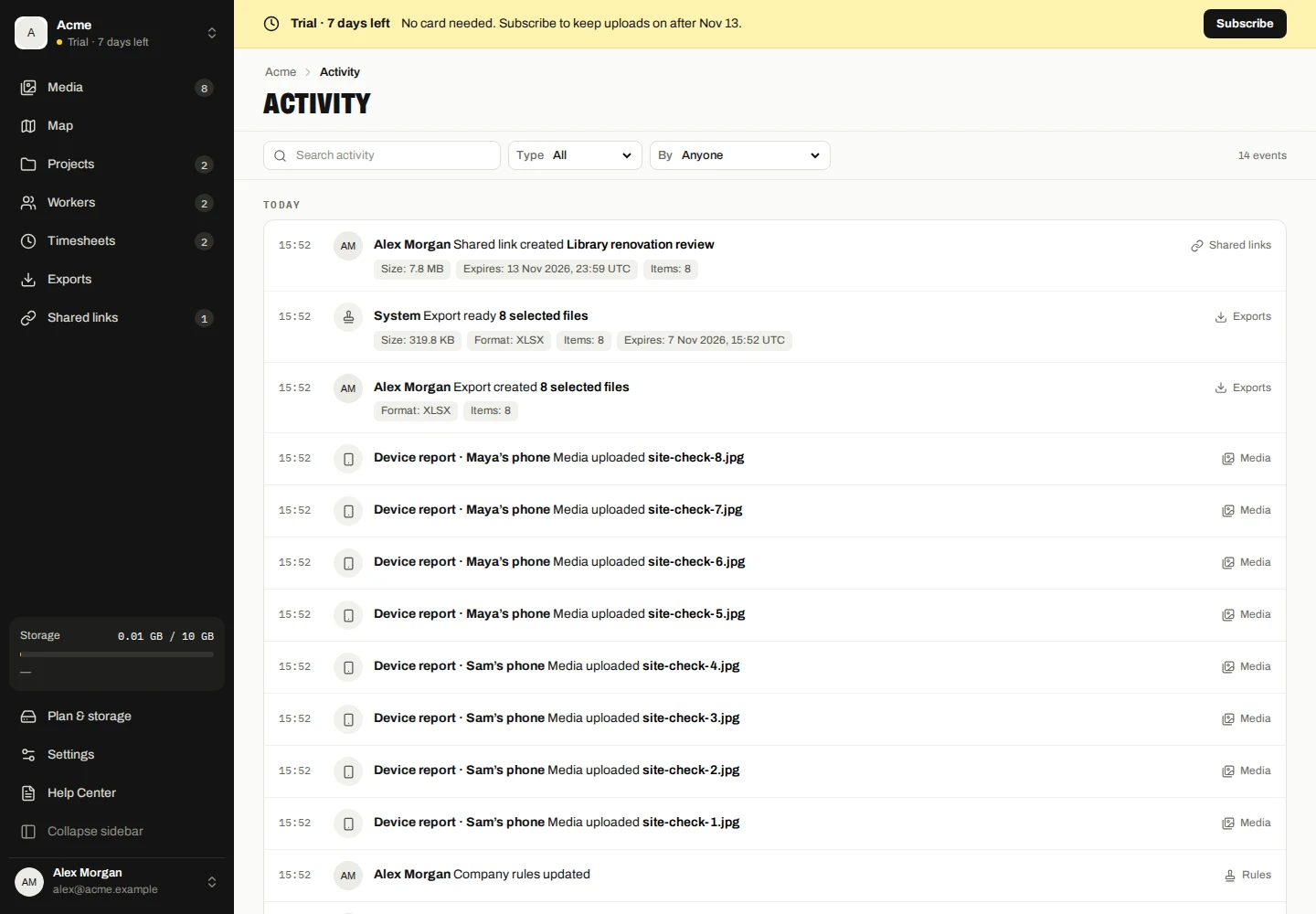
- Open Activity to review recorded workspace actions.
- Search and filter by category or who performed the action. Use Load older events for earlier records.
- Open the available action to inspect the related record.
Activity is separate from notification read status. It records actions by company users, phones, Marka and public visitors. A historical entry can remain after its related record becomes unavailable.
Attendance review settings
- Open Settings → Timesheet rules.
- Review the available attendance review settings and save any changes.
- Review overlapping or incomplete shifts in Timesheets before approval.
Only recorded breaks count. There is no automatic break deduction or overtime cap. Approval and corrections remain explicit company actions.